
Savor is a block theme for restaurants, cafés, bakeries and bars. This guide takes you from a fresh install to a finished restaurant website. You never need to write code: everything is edited in the WordPress block editor.
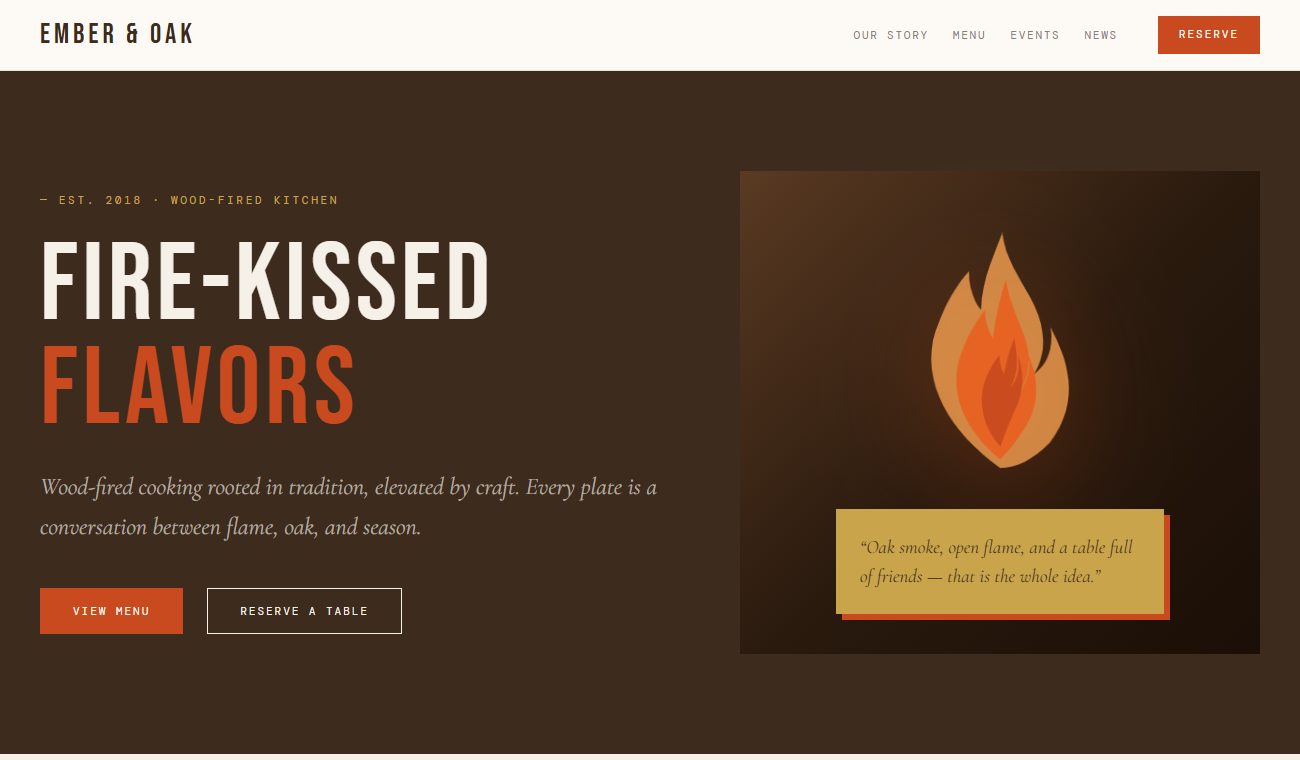
See it live: demo.webintegrate.com
Requirements: WordPress 6.6 or later, PHP 7.4 or later.
1. Install Savor
- In your WordPress dashboard, go to Appearance → Themes → Add Theme.
- Search for Savor, then click Install and Activate.
If you have the theme as a zip file, click Upload Theme on the same screen, choose the file, then Install Now and Activate.
2. Build your home page
Savor includes a complete restaurant home page: hero, our story, menu, hours and reservations, events and catering, guest reviews and latest news. You add it in one click.
- Go to Pages → Add Page and name the page Home.
- A Choose a pattern window opens. Pick Restaurant home page. (If the window does not appear, click + in the top left, open Patterns → Savor: Full pages and insert Restaurant home page.)
- In the right sidebar, open the Page tab. Under Template, choose Wide page (landing). This removes the page title and lets the sections run edge to edge.
- Click Publish.
- Go to Settings → Reading. Under Your homepage displays, choose A static page and select Home as the homepage. Click Save Changes.
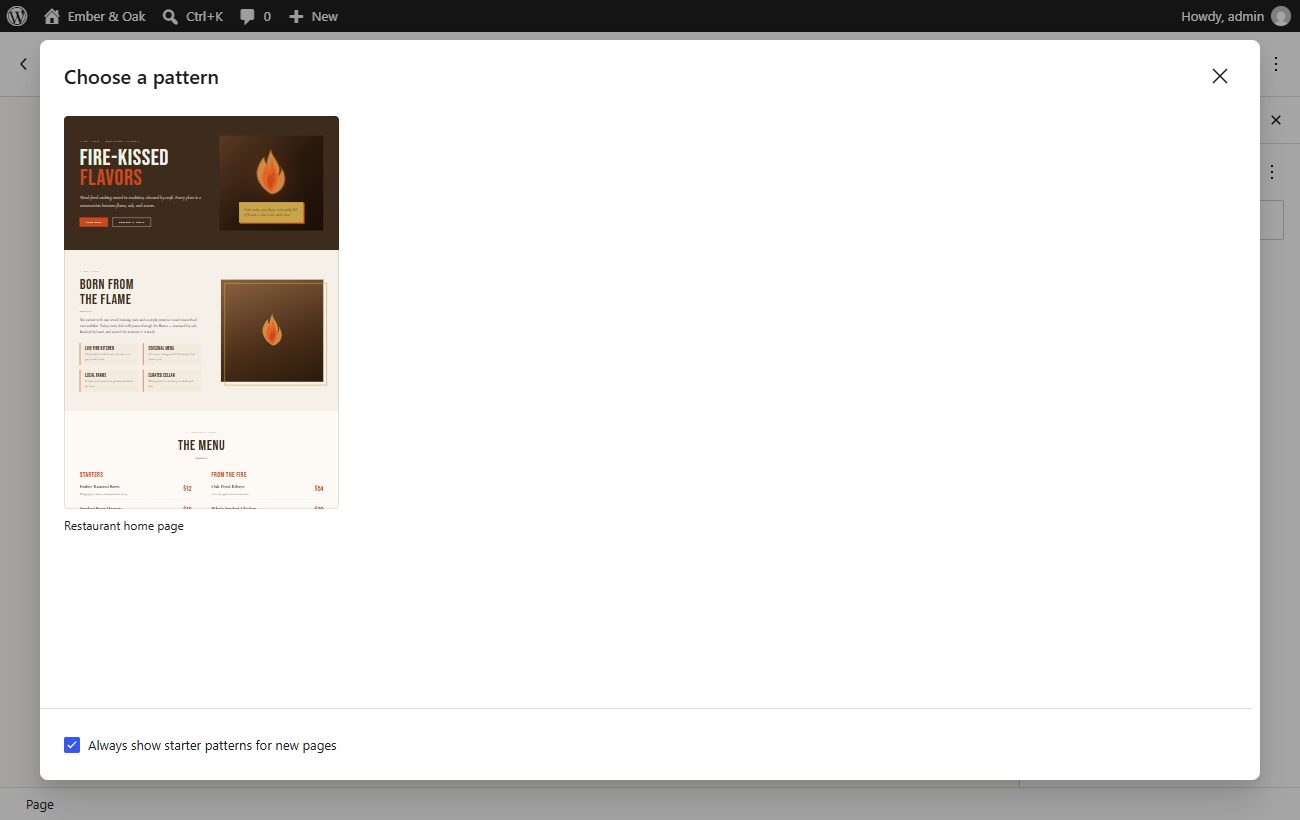
Now replace the sample text and photos with your own. Click any text to edit it, and click an image to replace it.
3. Set up the menu bar
The header holds your logo or site name, the main menu and a Reserve button.
Edit the menu: go to Appearance → Editor → Navigation, or click the menu in the header while editing. Add links, drag them into order and rename them.
The home page sections have built-in link targets, so menu links can jump straight to them:
| Section | Link |
|---|---|
| Our story | /#about |
| Menu | /#menu |
| Hours & reservations | /#reservations |
| Events & catering | /#events |
To add one, click + in the menu, type the link (for example /#menu) into the link box and press Enter. Then click the new menu item to rename it.
Menu shows every page? If your menu lists all your pages instead of the links you want, WordPress created it automatically. Open Appearance → Editor → Navigation, delete the page list and add your own links.
Reserve button: it jumps to the Hours & reservations section. To send guests somewhere else, such as your booking service, click the button in the header and change its link.
4. Add your logo and restaurant name
- Name: go to Settings → General and change Site Title. It appears in the header and footer.
- Logo: go to Appearance → Editor, open the header, click the logo placeholder next to the name and upload your logo.
5. Use the patterns
Patterns are ready-made sections. Insert them on any page: click +, open Patterns and choose Savor: Restaurant.
| Pattern | What it is |
|---|---|
| Hero – Fire-kissed | Full-width dark banner with headline, tagline, two buttons and a quote badge |
| Our story | Two-column story with four highlight cards and a framed photo |
| Menu – printed style | A classic two-column menu: dish, description and price, grouped by course |
| Hours & reservations | Opening hours, party info and phone number next to a "book a table" button |
| Events & catering | Three cards for catering and private events, then a dark call-to-action band |
| Guest reviews | Three reviews on a dark background |
| From the journal | Your three latest posts, updated automatically |
| Restaurant home page | All of the above as one page (under Savor: Full pages) |
6. Edit the restaurant sections
Hero
Change the headline, the tagline and the quote. The View Menu and Reserve a Table buttons jump to the menu and reservations sections, so you usually don't need to change their links. To use a photo of your food instead of the flame illustration, click the illustration and choose Replace.
Menu
Each dish is one row: name, description and price. To add a dish, select a row, click the ⋮ menu in the toolbar and choose Duplicate, then change the text. To start a new course, duplicate a course heading and its rows.
Hours & reservations
Change the dining hours and the large-party note by clicking the text. Then update the two ways to book:
- Book Online: click it and paste the link to your booking service (for example OpenTable or Resy) or to a page with a reservation form.
- Phone: change the number shown, then click it and change its link after
tel:, for exampletel:+17135550142. On phones, tapping it starts a call.
Events & catering
Edit the three cards for the kinds of events you host. The Start Planning button in the dark band should link to your contact page, an events form or a catering form.
Want a catering menu and request form here? Our Catering Requests plugin adds both and matches Savor's style. It is coming soon to WordPress.org.
Guest reviews
Replace the sample reviews with real ones from your guests, with their permission.
From the journal
This section shows your three latest posts automatically. Write posts under Posts → Add Post for seasonal menus, events and news.
7. Edit the footer
The footer shows your name, a short tagline, your address, opening hours and social links.
- Go to Appearance → Editor → Patterns and click Footer. You can also click the footer while editing any template.
- Click the text to change the address, hours and phone number.
- Click each social icon and enter your profile link. Use + next to the icons to add more networks, or remove the ones you don't use.
8. Colors, fonts and the Ember Night style
Go to Appearance → Editor → Styles.
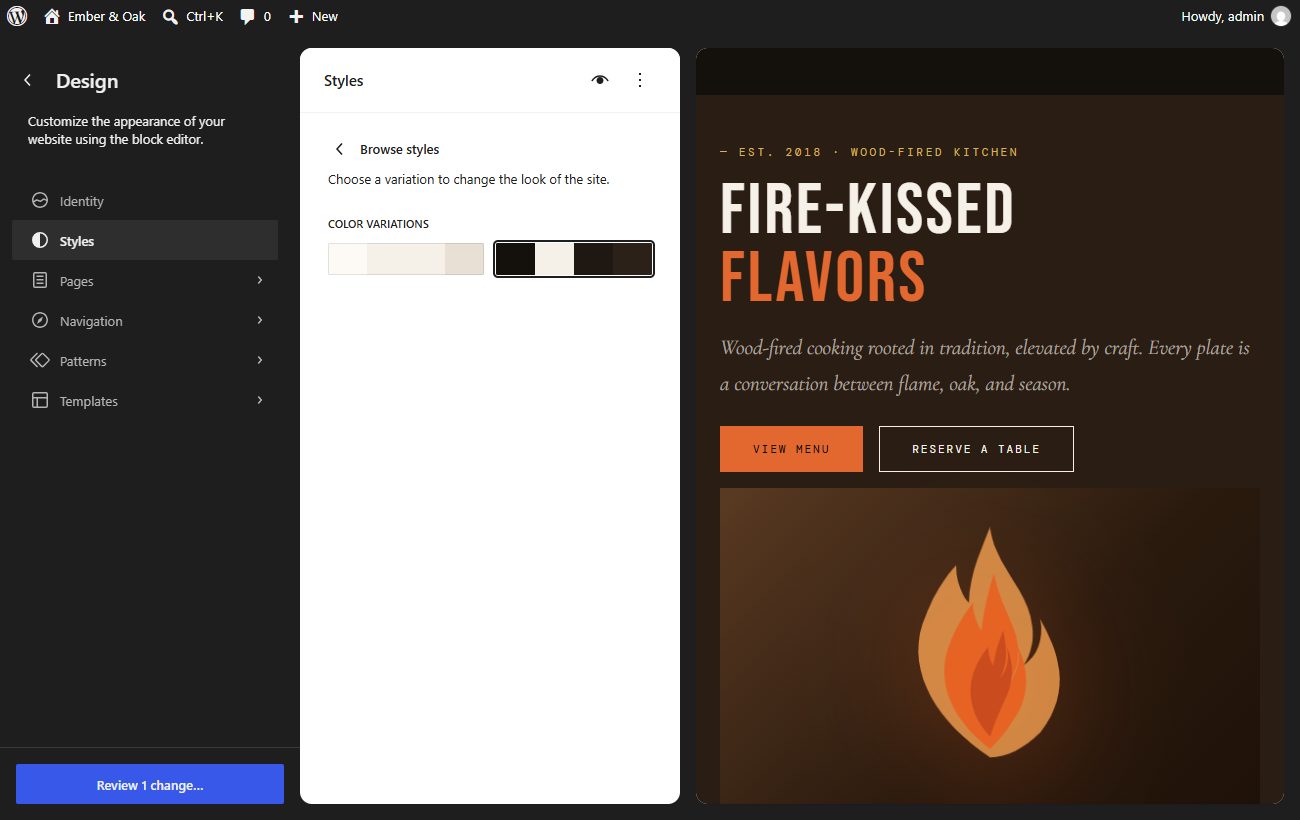
- Ember Night (dark style): click Browse styles. Under Color variations, click the dark swatch (the second one) to preview a dark version of the whole site. To keep it, click Review 1 change… at the bottom left, then Save. To switch back, click the light swatch and save again.
- Colors: open Colors → Palette to change any theme color. Every section that uses it updates at once.
- Fonts: open Typography to change the fonts and sizes for text, headings, links and buttons.
The Savor palette
| Color | Hex | Used for |
|---|---|---|
| Parchment | #fdfaf5 |
Page background |
| Linen | #f5f0e8 |
Soft background for alternating sections |
| Cream | #f5f0e8 |
Light text on dark sections |
| Smoke | #e8e0d4 |
Soft backgrounds and borders |
| Ash | #8a8078 |
Captions and secondary text |
| Ember | #c94a1e |
Buttons and links |
| Gold | #c9a44a |
Small labels, frames and reviewer names |
| Bark | #3d2c1e |
Headings and dark sections |
| Ink | #1a1410 |
Main text |
| Night | #1a1410 |
Darkest backgrounds (reviews, footer) |
Fonts: Bebas Neue for headings, Cormorant Garamond for text and DM Mono for buttons and labels. The fonts are included in the theme, so your site does not load them from Google or any other outside service.
Block styles. Savor adds extra looks to some blocks. Select a block and open Styles in the right sidebar to use them:
| Style | Block | Look |
|---|---|---|
| Eyebrow label | Paragraph | Small, spaced-out gold capitals above a heading |
| Flame rule | Separator | Short ember-to-gold line under a heading |
| Menu row | Group | One dish per line, with a dashed line underneath and the price kept on one line |
| Gold frame | Group | A gold frame set slightly behind a photo |
| Ember badge | Group | A solid ember shadow offset to the lower right |
| Ember accent bar | Group | An ember bar on the left edge |
9. Templates
Savor includes templates for every kind of page. Choose a page's template in the Page tab of the editor sidebar. Edit templates under Appearance → Editor → Templates.
| Template | Used for |
|---|---|
| Pages | Standard pages with a title |
| Page without title | Pages where you design the top yourself |
| Wide page (landing) | Full-width landing pages like the home page |
| Blog Home | Your posts page |
| Single Posts | Individual posts |
| All Archives | Category, tag and date archives |
| Search Results | Search results |
| Page: 404 | "Page not found" |
| Index | Fallback for anything without its own template |
Set up a news page: create an empty page called News, then go to Settings → Reading and choose it as the Posts page.
Frequently asked questions
Does Savor include a reservation form?
No. Forms are plugin territory, so Savor keeps reservations as a button. Link it to your booking service, or add a form block from a reservation or contact form plugin.
Can I use Savor for a café, bakery or bar?
Yes. Change the sample text, and remove or reorder any section. Every pattern works on its own.
Is Savor translation-ready?
Yes. All theme text can be translated, and it works with translation plugins.
Where do I get help?
Contact us with your WordPress version, a link to your site and a short description of the issue. Once Savor is listed on WordPress.org, you can also post in its support forum there.