
Lamplight is a block theme for churches, ministries and faith communities. This guide takes you from a fresh install to a finished church website. You never need to write code: everything is edited in the WordPress block editor.
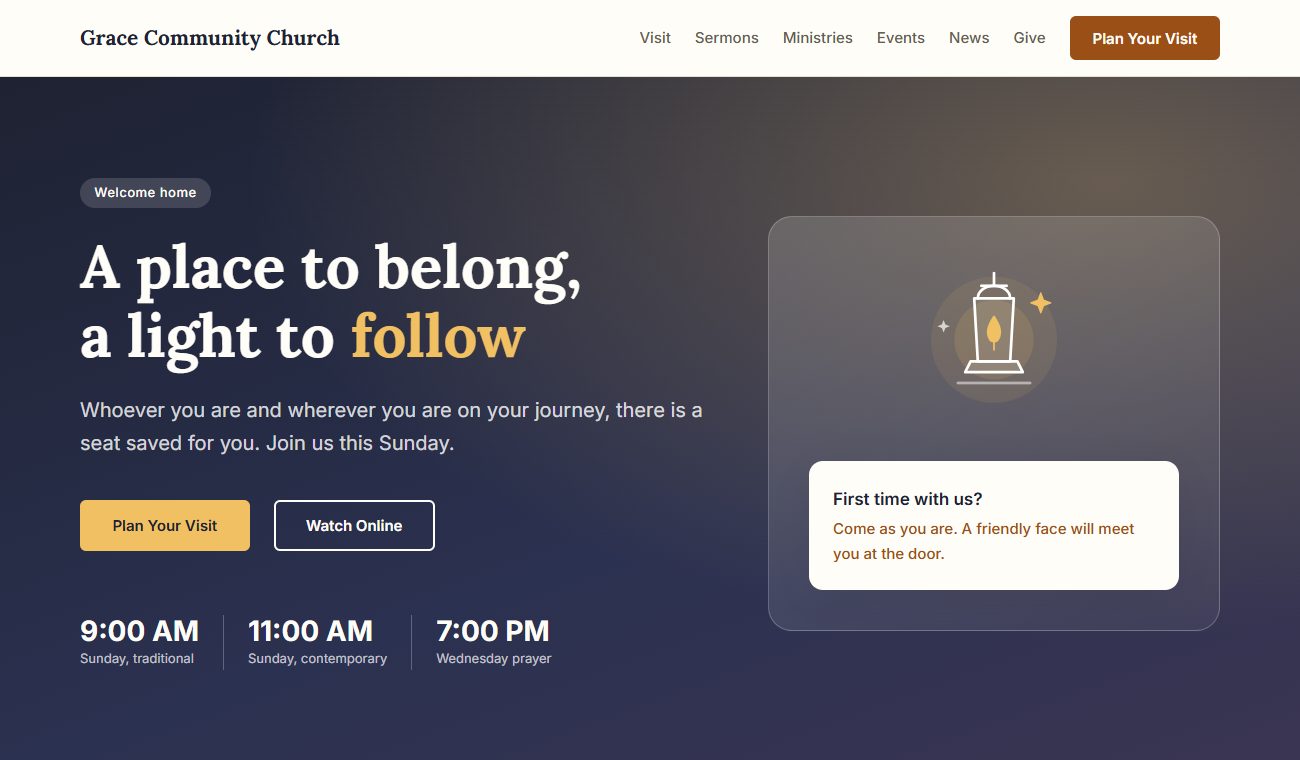
See it live: church.webintegrate.com
Download: Lamplight 1.2.0 (zip, free)
Requirements: WordPress 6.6 or later, PHP 7.4 or later.
1. Install Lamplight
- Download Lamplight 1.2.0. Keep the zip file as it is; don't unzip it.
- In your WordPress dashboard, go to Appearance → Themes → Add Theme, then click Upload Theme.
- Choose the zip file, click Install Now, then Activate.
Updating later: when a new version is released, download it here and upload it the same way. WordPress asks whether to replace the installed version: choose Replace active with uploaded (or Replace installed with uploaded if Lamplight is not your active theme). Your pages, menus and settings are kept.
Lamplight is also on its way to the WordPress.org theme directory. Once it is listed there, you can install it by searching for Lamplight under Add Theme and get updates automatically.
2. Edit your home page
Your home page is ready the moment you activate Lamplight. It shows a complete church home page: welcome hero with service times, plan your visit, latest sermon, ministries, upcoming events, meet the pastor, questions from guests, online giving and church news. You don't need to create a page or change any settings.
The home page comes from the Front Page template, so you edit it in the Site Editor:
- Go to Appearance → Editor → Templates and open Front Page.
- Replace the sample service times, address, names and text with your own. Click any text to edit it, and click an image to replace it.
- Click Save in the top right. Your changes appear on the home page right away.
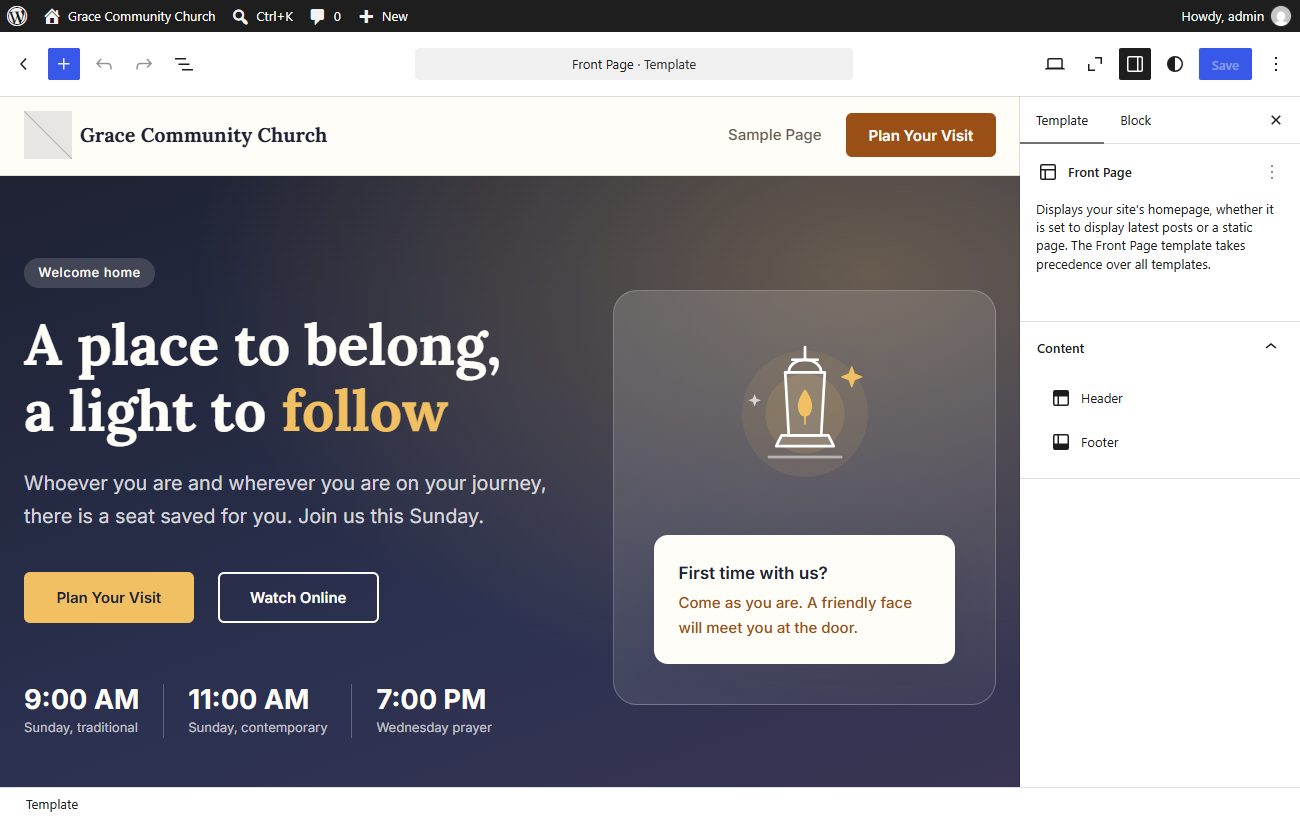
Made a mistake? In Appearance → Editor → Templates, open the ⋮ menu next to Front Page and choose Reset to go back to the original design.
Updating from Lamplight 1.0.0? Version 1.0.1 added the Front Page template, and it now shows on your home page instead of the Home page you built. To keep your page, open the Front Page template, delete its sections and add a Content block in their place. Your Home page then shows there again.
3. Set up the menu bar
The header holds your logo or church name, the main menu and a Plan Your Visit button.
Edit the menu: go to Appearance → Editor → Navigation, or click the menu in the header while editing. Add links, drag them into order and rename them.
The home page sections have built-in link targets, so menu links can jump straight to them:
| Section | Link |
|---|---|
| Plan your visit | /#visit |
| Latest sermon | /#sermons |
| Ministries | /#ministries |
| Upcoming events | /#events |
| Meet the pastor | /#about |
| Questions from guests | /#new-here |
| Give online | /#give |
To add one, click + in the menu, type the link (for example /#visit) into the link box and press Enter. Then click the new menu item to rename it.
Menu shows every page? If your menu lists all your pages instead of the links you want, WordPress created it automatically. Open Appearance → Editor → Navigation, delete the page list and add your own links.
Plan Your Visit button: it jumps to the plan-your-visit section on the home page. To send guests to a separate page, click the button in the header and change its link.
4. Add your logo and church name
- Name: go to Settings → General and change Site Title. It appears in the header and footer.
- Logo: go to Appearance → Editor, open the header, click the logo placeholder next to the name and upload your logo.
5. Use the patterns
Patterns are ready-made sections. Insert them on any page: click +, open Patterns and choose Lamplight: Church.
| Pattern | What it is |
|---|---|
| Hero – Welcome | Full-width evening-glow banner with a welcome tag, headline, two buttons, service times and a lamp illustration with a "first time with us?" card |
| Hero – Centered | The same welcome, centered, with the service times in three glass cards below |
| Hero – Light with photo | Light background with the welcome and a service times card on one side and a large rounded picture on the other. Replace the illustration with a photo of your church |
| Plan your visit | Service times and location cards with a directions button, next to a "what to expect" checklist for first-time guests |
| Latest sermon | The latest message with a video area, speaker and scripture, plus three earlier messages |
| Sermons – Video grid | Three recent messages side by side, each with a video picture, scripture, title and speaker |
| Sermons – Spotlight | The latest message centered on a dark background with a large video picture |
| Ministries grid | Six ministry cards with icons: kids, students, small groups, worship, outreach and prayer |
| Upcoming events | Three events, each with a date badge, time, place and short description |
| Events – Simple list | A bulletin-style list, one event per row with the date on the left. Copy a row to add an event |
| Events – Featured | One big featured event (a retreat, revival or holiday service) next to two smaller events |
| Meet the pastor | Photo area with a name plate, a welcome from the pastor, a checklist of what your church believes and a button |
| Frequently asked questions | Questions first-time guests often ask, which open and close when clicked |
| Give online | Call-to-action band with a Give Online button and other ways to give |
| Church news (latest posts) | Your three latest posts, updated automatically |
| Church home page | All of the above as one page (under Lamplight: Full pages) |
Switch a section to a different layout
The welcome hero, sermons and events sections each come in three layouts. To change one, for example from the event cards to the simple list:
- Open Appearance → Editor → Templates → Front Page (or the page that holds the section).
- Click + next to the section, open Patterns → Lamplight: Church and insert the layout you want, such as Events – Simple list.
- Copy your own details into the new layout.
- Click the old section, open the ⋮ menu in its toolbar, choose Delete, then click Save.
Add more pages
To build another page from the same sections, for example a Visit or Ministries page:
- Go to Pages → Add Page and give the page a name.
- A Choose a pattern window opens. Pick Church home page to start from every section, or close the window and add single sections from + → Patterns → Lamplight: Church.
- In the right sidebar, open the Page tab. Under Template, choose Wide page (landing) so the sections run edge to edge, then click Publish.
6. Edit the church sections
These sections are on your home page, so edit them in Appearance → Editor → Templates → Front Page. If you added them to another page, edit them on that page instead.
Welcome hero
Change the headline and the three service times below the buttons. Plan Your Visit jumps to the plan-your-visit section and Watch Online jumps to the latest sermon, so you usually don't need to change their links.
Plan your visit
Update the three cards with your service times, midweek gathering and address. Then click Get Directions and replace its link with your church's Google Maps link: search for your church on Google Maps, click Share and copy the link. Edit the "What to expect" checklist so first-time guests know about parking, kids' classes and how long the service lasts.
Ministries
Each card has an icon, a ministry name and a short description. Click a card's icon to replace it with your own image. To add a ministry, select a card, click ⋮ in the toolbar and choose Duplicate. To remove one, select it and press Delete.
Upcoming events
Each event has a date badge (month and day), a title, a time and place line and a short description. Edit them by hand as your calendar changes. Point Full Calendar to your calendar page, or remove the button. If you use an events plugin, you can replace this section with that plugin's block.
Meet the pastor
Replace the illustration with a photo of your pastor: click the image, then Replace. Update the name plate, your church's story and the checklist of what you believe. Point What We Believe to your beliefs page.
Questions from guests
Each question is a Details block: the question is always visible and the answer opens when clicked. To add a question, select one, click ⋮ and choose Duplicate, then change both the question and the answer.
Church news
This section shows your three latest posts automatically. Write posts under Posts → Add Post for announcements, stories and church news.
7. Show your sermon video
The Latest sermon section starts with an image in the video area. To show your actual sermon from YouTube:
- Open the section and click the sermon image. Press Delete to remove it.
- Click + where the image was, search for YouTube (or Embed) and add the block.
- Paste the link to your sermon video or livestream, for example
https://www.youtube.com/watch?v=..., and click Embed. The video player appears right away. - Update the sermon title, speaker and scripture, and point Watch on YouTube and All Sermons to your YouTube channel or sermon page.
Each week, paste the new video link and update the title. The three earlier messages below are simple cards: change their titles and scriptures, and link each one to its video.
8. Set up online giving
Lamplight doesn't process payments itself. Instead, the Give Online button sends people to your church's giving page, wherever you already receive gifts.
- Find the link to your giving page. Most online giving services (and many church management systems) give you a public page for donations.
- In the Give section, click Give Online, then click the link icon and paste your giving page link.
- Edit the "Other ways to give" list to match how your church receives gifts.
If you use a donation plugin instead, you can replace the button with that plugin's form block.
9. Edit the footer
The footer shows your church name, a short welcome message, your service times and how to find you.
- Go to Appearance → Editor → Patterns and click Footer. You can also click the footer while editing any template.
- Click the text to change the service times, address and phone number.
10. Colors, fonts and the Modern Sans style
Go to Appearance → Editor → Styles.
- Color styles: click Browse styles and pick one of the eight color styles: Lamplight (evening blue and ember, the default), Hymnal (forest green and brass), Harbor (navy and gold), Vineyard (burgundy and honey), Dancheong (celadon and gold, inspired by Korean temple colors), Morning Light (white and bright blue), Terracotta (clay and olive gold) or Advent (purple and candle gold). The whole site, including the icons, changes at once. Every style is checked for readable contrast. Click Review 1 change…, then Save to keep it.
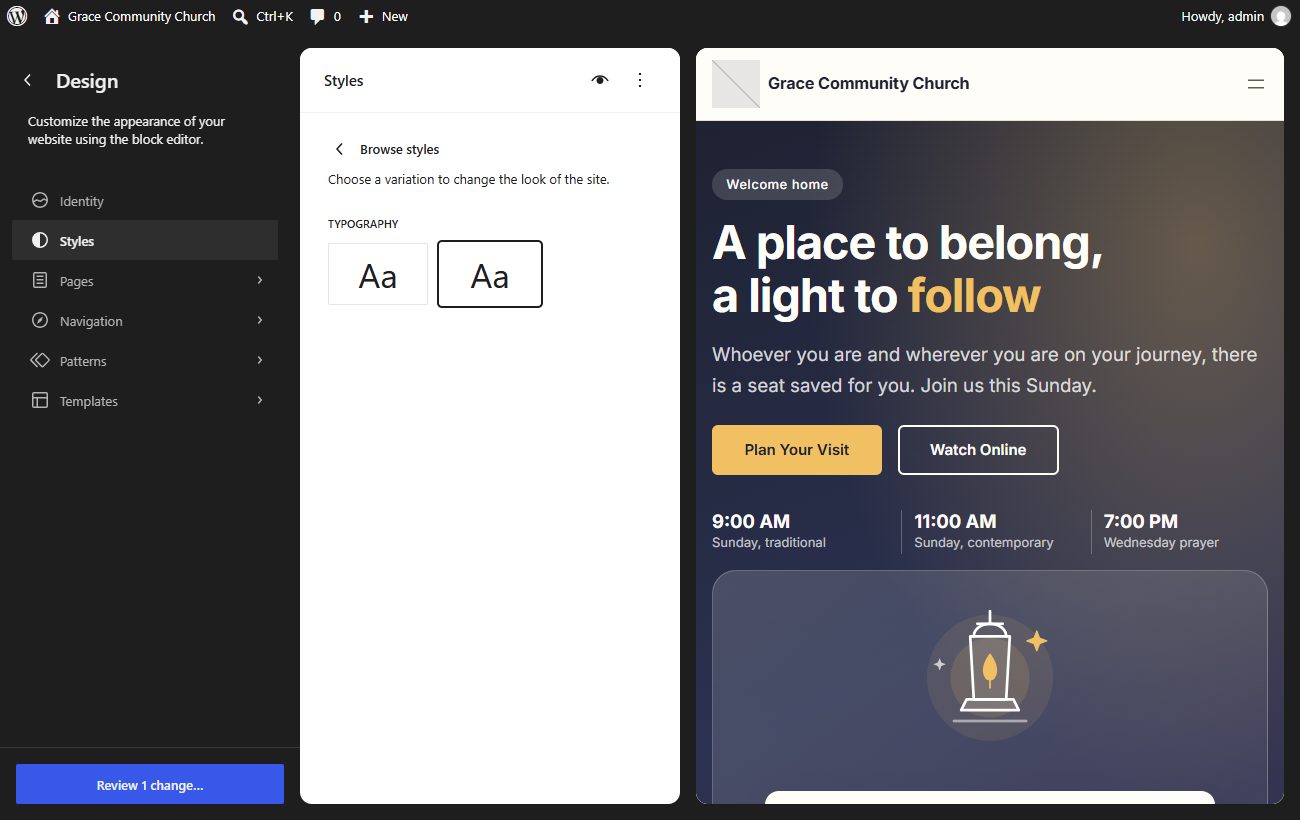
- Modern Sans: click Browse styles. Under Typography, click the second Aa tile to preview headings in a clean, bold sans-serif instead of the warm serif. To keep it, click Review 1 change… at the bottom left, then Save. To switch back, click the first Aa tile and save again.
- Colors: open Colors → Palette to change any theme color. Every section that uses it updates at once.
- Fonts: open Typography to change the fonts and sizes for text, headings, links and buttons.
The default Lamplight palette (the other color styles use the same nine roles with their own colors)
| Color | Hex | Used for |
|---|---|---|
| Candle White | #fffdf8 |
Page background and cards |
| Linen | #f8f4ec |
Soft background for alternating sections |
| Parchment | #f2e7d3 |
Icon tiles and soft panels |
| Sand | #e7dfd0 |
Borders |
| Driftwood | #655d52 |
Captions and secondary text |
| Ember | #9a4f16 |
Buttons, links and labels |
| Deep Ember | #763b0f |
Buttons and links when hovered |
| Lamp Gold | #f0c062 |
Highlights and buttons on dark backgrounds |
| Night Ink | #1e2232 |
Headings, main text and dark sections |
Fonts: Lora for headings and Inter for text and buttons. The fonts are included in the theme, so your site does not load them from Google or any other outside service.
Block styles. Lamplight adds extra looks to some blocks. Select a block and open Styles in the right sidebar to use them:
| Style | Block | Look |
|---|---|---|
| Eyebrow label | Paragraph | Small, spaced-out capitals above a heading |
| Pill tag | Paragraph | Text in a rounded pill |
| Card | Group | Card with a border and rounded corners that lifts slightly on hover |
| Glass panel | Group | See-through panel for use on dark backgrounds |
| Floating card | Group | Rounded card with a strong shadow |
| Icon tile | Image | Icon on a soft rounded tile |
| Checklist | List | Each item with a checkmark |
| FAQ card | Details | Question in a bordered card that changes color when open |
11. Templates
Lamplight includes templates for every kind of page. Choose a page's template in the Page tab of the editor sidebar. Edit templates under Appearance → Editor → Templates.
| Template | Used for |
|---|---|
| Front Page | Your home page, with all the church sections |
| Pages | Standard pages with a title |
| Page without title | Pages where you design the top yourself |
| Wide page (landing) | Full-width landing pages built from patterns |
| Blog Home | Your posts page |
| Single Posts | Individual posts |
| All Archives | Category, tag and date archives |
| Search Results | Search results |
| Page: 404 | "Page not found" |
| Index | Fallback for anything without its own template |
Set up a news page: create two empty pages called Home and News. Go to Settings → Reading, choose A static page, select Home as the Homepage and News as the Posts page, and click Save Changes. Your home page keeps showing the Front Page template, and your posts appear at /news/.
Frequently asked questions
Does Lamplight include online giving, an events calendar or a sermon library?
No. Payments, calendars and media libraries are plugin territory, so Lamplight keeps giving and events as editable sections and buttons. Link the Give Online button to your giving provider, and add blocks from an events or sermon plugin wherever you need them.
I set a static home page in Settings → Reading, but my home page did not change. Why?
The Front Page template always shows on your home page, whatever you choose in Settings → Reading. Edit your home page in Appearance → Editor → Templates → Front Page. If you would rather build your home page as a regular page, open the Front Page template, delete its sections and add a Content block in their place. The page you chose as your homepage then shows there.
Can I stream our services live?
Yes. When you go live on YouTube, your live stream has its own link. Paste that link into the YouTube block in the Latest sermon section, and replace it with the recording afterwards.
Can I use Lamplight for a ministry, a campus group or a non-English congregation?
Yes. Change the sample text and icons, and remove or reorder any section. Every pattern works on its own. All theme text can be translated, and Lamplight works with translation plugins.
Where do I get help?
Contact us with your WordPress version, a link to your site and a short description of the issue. Once Lamplight is listed on WordPress.org, you can also post in its support forum there.